FabFilter Pro-MB Multiband Compressor
FabFilter Pro-MB Multiband Compressor
This listing has ended
See similar gear from other Reverb sellers

Our users rate Reverb
What it is:
An intuitive multiband dynamic processor.
How we use it:
From highly-transparent compression to punchy gating, Pro-MB has near infinite uses.
Why it's cool:
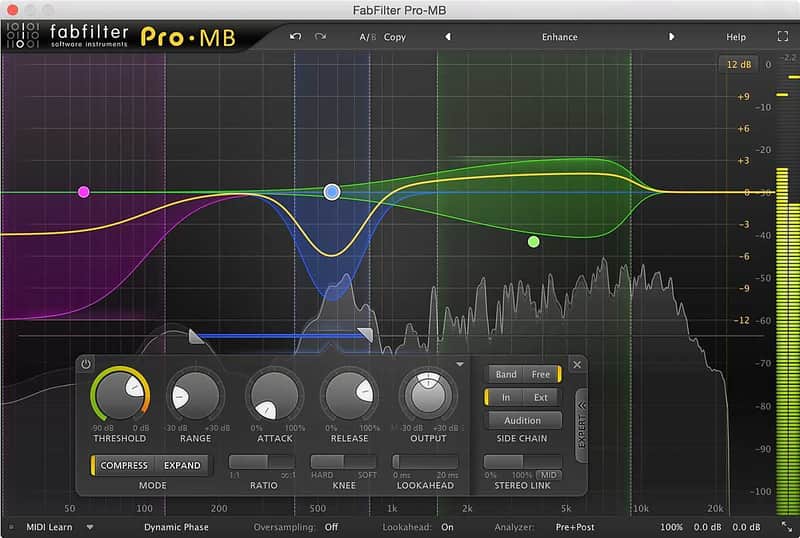
Via its intuitive interface, Pro-MB makes the world of multiband compression accessible to all without sacrificing quality.
Multiband compression andexpansion are powerful tools, but notoriously difficult to set up and control.Enter FabFilter Pro-MB: making multiband dynamics processing intuitive yetpowerful at the same time.
FabFilter Pro-MB introduces aunique Dynamic Phase processing mode. It has virtually the same frequencyresponse as traditional multiband processing, but doesn't introduce latency orpre-ringing, and only introduces minor phase changes when the gain actuallychanges. Of course, we have also included an excellent Linear Phase mode and atraditional Minimum Phase mode.
The powerful combination of highquality processing, optimized workflow using the interactive multiband displayand all the expert features you need, makes Pro-MB both a lifesaver andtimesaver!
Features
- Up to six processing bands, freely placed anywhere in the spectrum
- Bands can be easily snapped together to form a traditional crossover system
- Unique Dynamic Phase processing mode featuring zero latency, no static phase changes and no pre-ringing artifacts
- Excellent Linear Phase processing mode, eliminating audible artifacts when quickly changing crossover frequencies
- Minimum Phase processing mode
- Handles any form of dynamics processing, from highly transparent compression, limiting and expansion to pumping upward compression and punchy gating
- Fully customizable per band: threshold, range, attack, release, output gain, ratio, variable knee, lookahead (up to 20 ms), variable stereo linking, mid- or side-only processing, external side chain input, triggering on a separate frequency range
- Steepness of each crossover slope can be freely adjusted between 6 dB/oct and 48 dB/oct
- Intelligent, highly program- and frequency-dependent attack and release curves
- Global dry/wet mix from 0% to 200% to easily scale the total effect of the plug-in
- Unique interactive multiband display, designed for an optimal workflow
- Accurate and smooth real-time frequency analyzer with pre- and post-processing options and 'freeze' feature
- High-quality audio processing algorithms with 64-bit internal processing where needed
- Up to four times linear-phase oversampling
- Band solo/mute and bypass options
- Precise output metering
- GPU-powered graphics acceleration
- Double-click text entry of parameter values
- Stereo and mono plug-ins available
- Supports common Pro Tools hardware control surfaces
- MIDI Learn
- Undo/redo and A/B comparison
- Smart Parameter Interpolation
- Sample-accurate automation of all parameters
- Extensive help file with interactive help hints
Compatibility
Windows
- 32-bit: Windows 8, 7, Vista or XP
- 64-bit: Windows 8, 7 or Vista(x64)
- VST 2/3 host or Pro Tools
Mac OS X
- 32-bit: OS X 10.5 or higher
- 64-bit: OS X 10.6 or higher
- AU or VST 2/3 host or Pro Tools
- Intel processor
Installation Instructions
Installation Instructions:
- After you purchase your FabFilter product, Reverb SYNC will email your serial number
- To activate that serial number, go to: https://www.fabfilter.com/activate/
- Fill out the form
- After you have filled in the following form, a personal product license key will be sent to you by e-mail immediately
- You will be directed to download the plugin and activate it
- If Ableton Live is closed, open it and skip to #5.
- If Ableton Live is already open, go to Preferences.
- Go to Files & Folder.
- Click "Rescan plugins".
- Find the plugin in the Ableton plugins folder in the sidebar.
- Drag-and-drop the plugin onto your track at the bottom of the screen.
- Open Logic Pro X. Newly installed plugins should be detected automatically every time Logic is opened.
- If you've downloaded an effect or utility plugin, these can be used on an insert for any track in the mixer.
- Create a software instrument track if you downloaded a virtual instrument plugin.
- Under Default Patch, go to AU Instruments and choose the plugin you just installed.
- Open Pro Tools. Newly installed plugins should be detected automatically every time Pro Tools is opened.
- If you've downloaded an effect or utility plugin, these can be used on an insert for many types of tracks (Audio, Aux, Instrument, Master Fader...)
- If you’ve downloaded a software instrument, create a new Instrument track.
- Navigate to the Mixer and locate the newly created Instrument track.
- Select the desired instrument plugin by clicking on any of the Inserts on the Instrument track.
- Go to the Reverb SYNC Software and plugin Collection.
- Choose your desired plugin.
- Reverb will auto-detect your platform, so simply click the download button.
- Continue the installation process by following the prompt.
- Hover your mouse over the smart control button.
- Click Show Inspector icon.
- Click on plugins and choose your desired plugin.