iZotope RX 6 Standard
iZotope RX 6 Standard
New Price€277.94
Instant Download
This listing has ended
See similar gear from other Reverb sellers
Listed:over a month ago
Views:612
Saves:1
Offers:4

Chicago, IL, United States
Our users rate Reverb
RX 6 Standard - The ultimate in post-production audio magic.
What it is:
An advanced audio processor designed to remedy audio ailments.
How we use it:
Isolate dialogue, cure lavalier mic rustle, eliminate wind rumble, and much, much more.
Why it’s cool:
iZotope’s RX products seem to make the impossible possible - saving the perfect take from shoddy audio.Introducing RX 6 Standard: The Industry Standard for Audio Repair
RX is the industry standard audio repair tool that’s been used on countless albums, movies, and TV shows to restore damaged, noisy audio to pristine condition. Visually identify and repair problems with the standalone RX Audio Editor application, or use the plug-ins in real time in your favorite DAW or NLE.
With RX 6 Standard, we’re introducing new features and workflows that allow you to easily edit, repair, and restore audio both in post production and in musical performances. Thanks to innovations in vocal repair, bleed removal, and composite editing, you can save hours of time removing noise issues while preserving the integrity of the original performance.
Perfect for music and smaller post production studios
RX 6 Standard: Key Features
Composite View
Fix problems picked up by multiple microphones by editing multiple files at once.
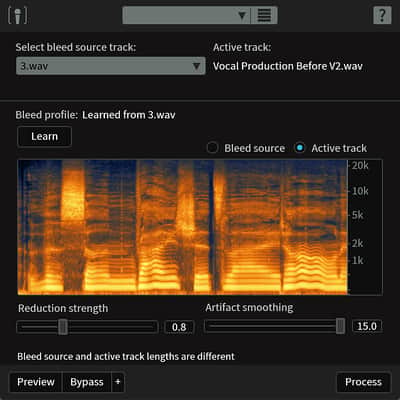
De-bleed
Remove headphone bleed from an acoustic guitar track, click track bleed from a vocal take, and fix other signal bleed issues.
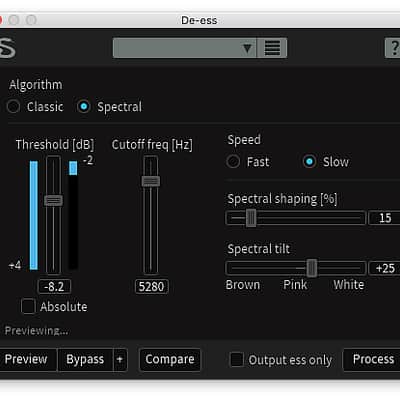
De-ess
Tame overly aggressive sibilance. The new Spectral De-ess mode transparently attenuates sibilance with iZotope’s Spectral Shaping technology.
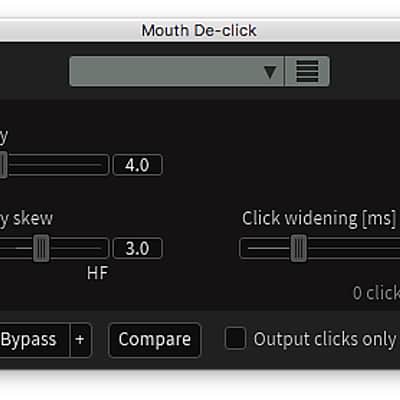
Mouth De-click
Remove distracting mouth noise with the new low latency Mouth De-click.
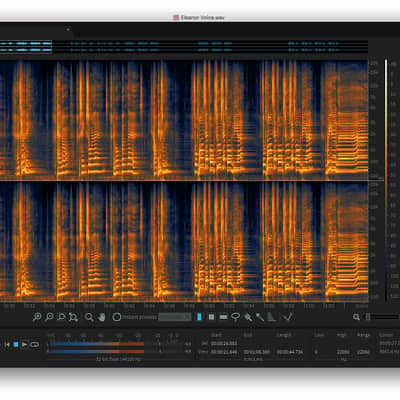
Spectral Repair
Visually paint away audio problems like ringing cell phones, birds, and squeaky bass drum pedals.
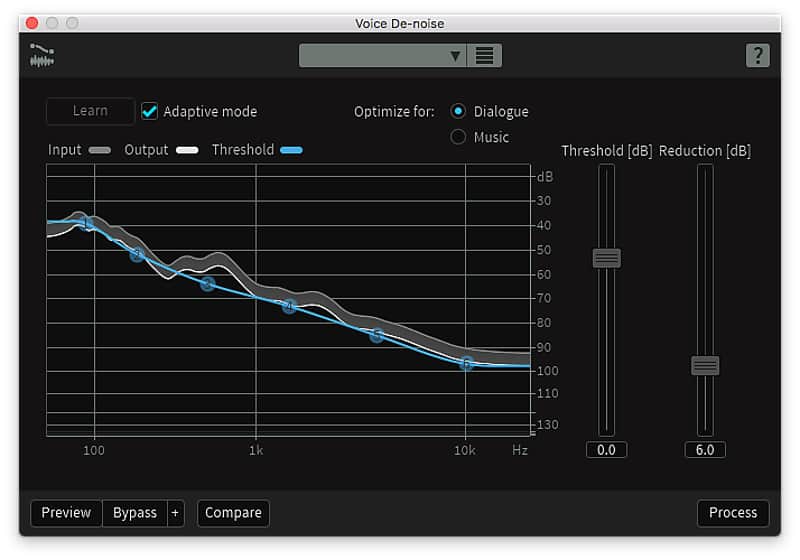
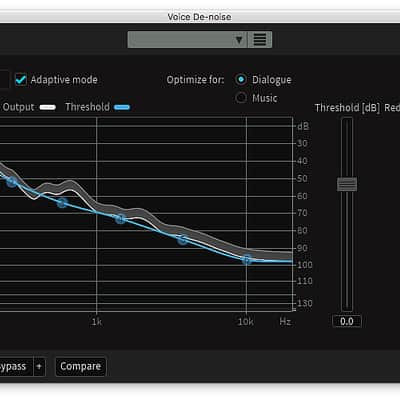
Voice De-noise
Fine tuned for vocal application, reduce unwanted steady state or changing background noise like air conditioning, refrigerator hum, and amp hiss.
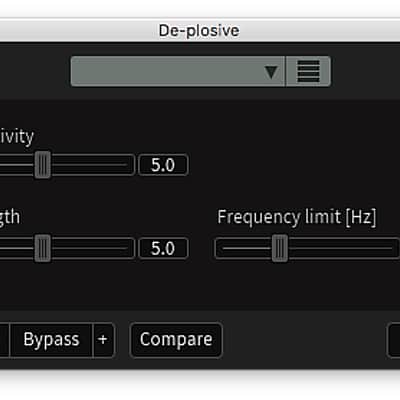
De-plosive
Transparently repair unwanted plosives with a single click.
Spectral De-noise
Attenuate amp buzz, tape hiss, and other unwanted steady state background noise.
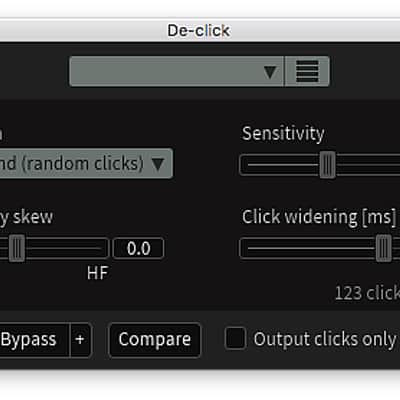
De-click
Clean up vinyl clicks, soften up click-y bass guitars and more. The new low latency algorithm enables you to use De-click right within your DAW or NLE without introducing sync issues.
De-clip
Repair digital and analog clipping artifacts to restore distorted audio.
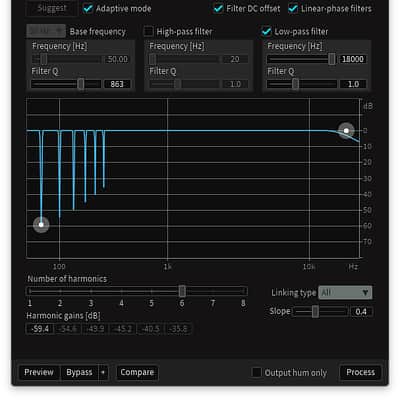
De-hum
Remove ground loop hum and line noise.
Compatibility
Installation Instructions
General Instructions:
What it is:
An advanced audio processor designed to remedy audio ailments.
How we use it:
Isolate dialogue, cure lavalier mic rustle, eliminate wind rumble, and much, much more.
Why it’s cool:
iZotope’s RX products seem to make the impossible possible - saving the perfect take from shoddy audio.Introducing RX 6 Standard: The Industry Standard for Audio Repair
RX is the industry standard audio repair tool that’s been used on countless albums, movies, and TV shows to restore damaged, noisy audio to pristine condition. Visually identify and repair problems with the standalone RX Audio Editor application, or use the plug-ins in real time in your favorite DAW or NLE.
With RX 6 Standard, we’re introducing new features and workflows that allow you to easily edit, repair, and restore audio both in post production and in musical performances. Thanks to innovations in vocal repair, bleed removal, and composite editing, you can save hours of time removing noise issues while preserving the integrity of the original performance.
Perfect for music and smaller post production studios
- Includes everything in RX Elements
- Eliminate noise issues with the magic of Spectral Repair
- Remove instrument mic bleed with De-bleed module
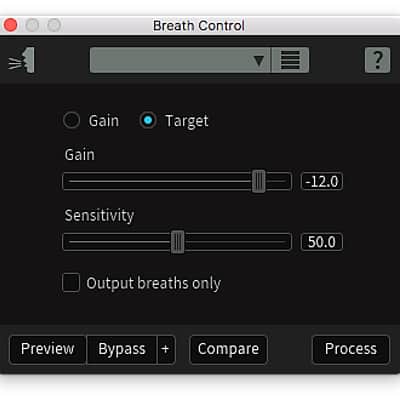
- Easily fix vocal issues like sibilance, breath, and mouth clicks
- Instantly repair multiple files at once with Composite View
RX 6 Standard: Key Features
Composite View
Fix problems picked up by multiple microphones by editing multiple files at once.
De-bleed
Remove headphone bleed from an acoustic guitar track, click track bleed from a vocal take, and fix other signal bleed issues.
De-ess
Tame overly aggressive sibilance. The new Spectral De-ess mode transparently attenuates sibilance with iZotope’s Spectral Shaping technology.
Mouth De-click
Remove distracting mouth noise with the new low latency Mouth De-click.
Spectral Repair
Visually paint away audio problems like ringing cell phones, birds, and squeaky bass drum pedals.
Voice De-noise
Fine tuned for vocal application, reduce unwanted steady state or changing background noise like air conditioning, refrigerator hum, and amp hiss.
De-plosive
Transparently repair unwanted plosives with a single click.
Spectral De-noise
Attenuate amp buzz, tape hiss, and other unwanted steady state background noise.
De-click
Clean up vinyl clicks, soften up click-y bass guitars and more. The new low latency algorithm enables you to use De-click right within your DAW or NLE without introducing sync issues.
De-clip
Repair digital and analog clipping artifacts to restore distorted audio.
De-hum
Remove ground loop hum and line noise.
Compatibility
NOTE: Within Pro Tools, we recommend using De-click and De-clip as AudioSuite plug-ins only.
Operating system requirements- Mac OS X 10.8–10.11
- Windows 7, 8, and 10
Native AAX 64 bit, RTAS 32 bit, Audiosuite DPM 32 bit and AAX 64 bit, AU 32 and 64 bit, VST 2 32 and 64 bit, VST 3
Plug-in host compatibilityPro Tools (10–12.4), Ableton Live (9.5), Logic Pro X (version 10.2), Nuendo 7 / Cubase 8.5, Audition CC 2015, Sonar, PreSonus Studio One, Media Composer 7.0.5 & 8.4.5, Premiere Pro CC 2015, Final Cut X, Sony Sound Forge (Windows: V.11.299; Mac: V.2.5.133), Digital Performer, Reaper
Installation Instructions
General Instructions:
- We auto-detect your computer operating system, so just click the download button above.
- Find the downloaded plugin (it's in your computer's download folder, or wherever you've chosen to save it) and double click the installer.
- A plugin installer window will open. Simply go through the installation process.
- We will also send you an email with a link to re-download in case you need it.
- If Ableton Live is closed, open it and skip to #5.
- If Ableton Live is already open, go to Preferences.
- Go to Files & Folder.
- Click "Rescan plugins".
- Find the plugin in the Ableton plugins folder in the sidebar.
- Drag-and-drop the plugin onto your track at the bottom of the screen.
- Open Logic Pro X. Newly installed plugins should be detected automatically every time Logic is opened.
- If you've downloaded an effect or utility plugin, these can be used on an insert for any track in the mixer.
- Create a software instrument track if you downloaded a virtual instrument plugin.
- Under Default Patch, go to AU Instruments and choose the plugin you just installed.
- Open Pro Tools. Newly installed plugins should be detected automatically every time Pro Tools is opened.
- If you've downloaded an effect or utility plugin, these can be used on an insert for many types of tracks (Audio, Aux, Instrument, Master Fader...)
- If you’ve downloaded a software instrument, create a new Instrument track.
- Navigate to the Mixer and locate the newly created Instrument track.
- Select the desired instrument plugin by clicking on any of the Inserts on the Instrument track.
- Go to the Reverb SYNC Software and plugin Collection.
- Choose your desired plugin.
- Reverb will auto-detect your platform, so simply click the download button.
- Continue the installation process by following the prompt.
- Hover your mouse over the smart control button.
- Click Show Inspector icon.
- Click on plugins and choose your desired plugin.