Sinevibes Hologram
Cette annonce est terminée
Découvrez du matériel similaire proposé par d'autres vendeurs Reverb

Nos utilisateurs évaluent Reverb
What it is:
A dynamic synth engine that adapts flawlessly to nearly any audio input.
How we use it:
Hologram works great as a tool to spark inspiration - pass some audio through it, and turn a song idea on its head.
Why it's cool:
The way in which Hologram contorts any audio signal into something completely new makes it an instrument in and of itself.
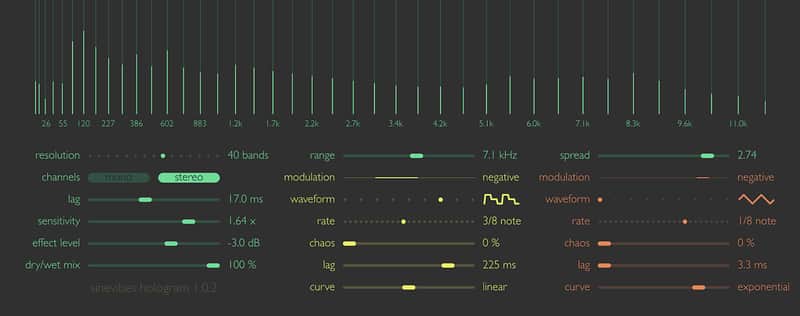
Hologram is a creative effect processor that resynthesizes the sound in real time. It does this by splitting the input signal into multiple frequency bands, analyzing their dynamics, and then recreating the signal’s spectrum with an array of sine oscillators. The result is a wide variety of pleasantly smooth synthetic tones whose spectral and dynamic characteristics are controlled by the input audio. To take it even further, Hologram also has two highly flexible, multi-waveform modulators that apply rhythmic motion to its re-synthesis engine.
The plugin features a color-coded interface with sharp graphics, handy parameter value displays and lively animations. A large spectrogram view allows to precisely see what the effect is doing. And as usual with Sinevibes software, Hologram supports Retina screens and offers great responsiveness even on old or low-spec hardware.
- Spectrum analyzer with up to 64 frequency bands.
- Sine oscillator array for real-time signal resynthesis.
- Two separate modulators with 9 waveforms, adjustable chaos, lag and curve.
- Advanced transport sync algorithm with support for tempo and time signature automation.
Compatibility
Hologram works with Logic, GarageBand, Live, MainStage, ReNoise, Reaper, Studio One, Digital Performer, Tracktion and other software that supports Audio Unit effect plugins. It comes in 32/64 bit format for Intel Macs running OS X 10.6 or later, and supports Retina screen resolution.
Compatibility
System Requirements
- Hologram works with Logic, GarageBand, Live, MainStage, ReNoise, Reaper, Studio One, Digital Performer, Tracktion and other software that supports Audio Unit effect plugins.
- It comes in 32/64 bit format for Intel Macs running OS X 10.6 or later, and supports Retina screen resolution.
Installation Instructions
General Instructions:
- We auto-detect your computer operating system, so just click the download button above.
- Find the downloaded plugin (it's in your computer's download folder, or wherever you've chosen to save it) and double click the installer.
- A plugin installer window will open. Simply go through the installation process.
- We will also send you an email with a link to re-download in case you need it.
- If Ableton Live is closed, open it and skip to #5.
- If Ableton Live is already open, go to Preferences.
- Go to Files & Folder.
- Click "Rescan plugins".
- Find the plugin in the Ableton plugins folder in the sidebar.
- Drag-and-drop the plugin onto your track at the bottom of the screen.
- Open Logic Pro X. Newly installed plugins should be detected automatically every time Logic is opened.
- If you've downloaded an effect or utility plugin, these can be used on an insert for any track in the mixer.
- Create a software instrument track if you downloaded a virtual instrument plugin.
- Under Default Patch, go to AU Instruments and choose the plugin you just installed.
- Go to the Reverb SYNC Software and plugin Collection.
- Choose your desired plugin.
- Reverb will auto-detect your platform, so simply click the download button.
- Continue the installation process by following the prompt.
- Hover your mouse over the smart control button.
- Click Show Inspector icon.
- Click on plugins and choose your desired plugin.
| Marque | |
|---|---|
| Modèle |
|
| Catégories |
Des informations concernant la sécurité des produits peuvent être disponibles ici.