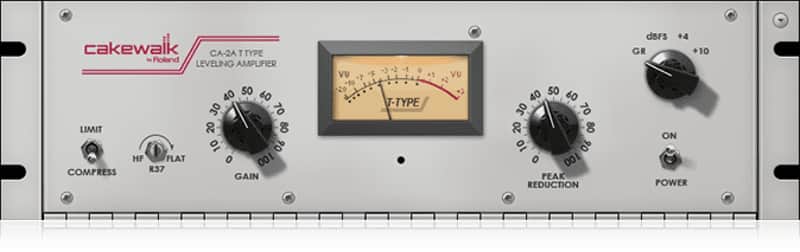
Discontinued - Cakewalk CA-2A Leveling Amplifier
This listing has ended
See similar gear from other Reverb sellers

Our users rate Reverb
Add iconic tube leveling to your tracks with one of the most stunning LA-2A emulations to date.
What it is:
A faithful, yet modern take on the famed LA-2A leveling amplifier.
How we use it:
Toss CA-2A on any track to smoothen and add analog depth to a mix.
Why it's cool:
The CA-2A is brings to the table all things LA-2A while adding a secondary release type and side-chain capabilities.
Power to the producer. Cakewalk is excited to announce our very own CA-2A T-Type Leveling Amplifier.
A Handcrafted Plug-in of Classic Proportions
The CA-2A T-Type Leveling Amplifier captures the true performance energy of some of the most classic devices used in studios for the past 50 years. This plug-in exemplifies the height of Cakewalk’s DSP with modeling technology designed and built by our engineers.
Simple Controls With Powerful Drive
This plugin couldn’t be easier to use. Turn up the gain reduction and gain-match your signal, that’s it. The CA-2A T-Type Leveling Amplifier’s fixed attack and release settings keep you focused on your music with unmatched simplicity.
Legendary Character, Exceptional Control
Character compression is all about creativity. With the CA-2A Leveling Amplifier you can add movement, depth, and control to your tracks with ease. Lift to your vocalist’s passages, or drive your bass guitar with the harmonic saturation heard at extreme gain reduction settings.
Our Own Touch of Modern
Cakewalk has added a secondary release type and side-chain capability to the CA-2A T-Type Leveling Amplifier for classic dynamic mixing techniques. Pump your 2-bus or duck your bass with kick, and take control of your mixes with incredible accuracy.
Compatibility
Windows
- Windows 7 SP1, Windows 8, and Windows 10 (32-bit and 64-bit)*
- Processor: Intel Core 2 Duo or newer processor**
- Memory: Minimum 1 GB RAM
- Disk space: 100 MB
- Screen Resolution: 1280x800 minimum resolution, 32-bit color
- Formats: VST3, VST2, AAX and ProChannel module***
- Mac OSX 10.8 (64-bit Only) or later
- Processor: Intel Core 2 Duo or newer processor**
- Memory: Minimum 1 GB RAM
- Disk space: 100 MB
- Screen Resolution: 1280x800 minimum resolution, 32-bit color
- Formats: VST3, AAX, AU
Installation Instructions
Most Cakewalk software should be installed and registered via the Cakewalk Command Center. We recommend taking the following steps after getting your serial number from Reverb SYNC:
- Create/Login to a Cakewalk Account at https://www.cakewalk.com/My-Account
- Visit http://www.cakewalk.com/redeem
- Enter the redemption key emailed to you by Reverb SYNC.
- Click the Redeem button and then start downloading your product! Your downloads and serial numbers will now be displayed at https://www.cakewalk.com/My-Account/Products
- We auto-detect your computer operating system, so just click the download button above.
- Find the downloaded plugin (it's in your computer's download folder, or wherever you've chosen to save it) and double click the installer.
- A plugin installer window will open. Simply go through the installation process.
- We will also send you an email with a link to re-download in case you need it.
- If Ableton Live is closed, open it and skip to #5.
- If Ableton Live is already open, go to Preferences.
- Go to Files & Folder.
- Click "Rescan plugins".
- Find the plugin in the Ableton plugins folder in the sidebar.
- Drag-and-drop the plugin onto your track at the bottom of the screen.
- Open Logic Pro X. Newly installed plugins should be detected automatically every time Logic is opened.
- If you've downloaded an effect or utility plugin, these can be used on an insert for any track in the mixer.
- Create a software instrument track if you downloaded a virtual instrument plugin.
- Under Default Patch, go to AU Instruments and choose the plugin you just installed.
- Open Pro Tools. Newly installed plugins should be detected automatically every time Pro Tools is opened.
- If you've downloaded an effect or utility plugin, these can be used on an insert for many types of tracks (Audio, Aux, Instrument, Master Fader...)
- If you’ve downloaded a software instrument, create a new Instrument track.
- Navigate to the Mixer and locate the newly created Instrument track.
- Select the desired instrument plugin by clicking on any of the Inserts on the Instrument track.
- Go to the Reverb SYNC Software and plugin Collection.
- Choose your desired plugin.
- Reverb will auto-detect your platform, so simply click the download button.
- Continue the installation process by following the prompt.
- Hover your mouse over the smart control button.
- Click Show Inspector icon.
- Click on plugins and choose your desired plugin.